Apple TV 4K: Fix Black Screen, Flickering, and HDR Issues with Match Content and the Right HDMI Port
Learn how to fix black screens, flickering, and incorrect HDR output on Apple TV 4K. This guide covers enabling Match Dynamic Range in settings and ensuring your HDMI setup supports 4K and HDR formats.
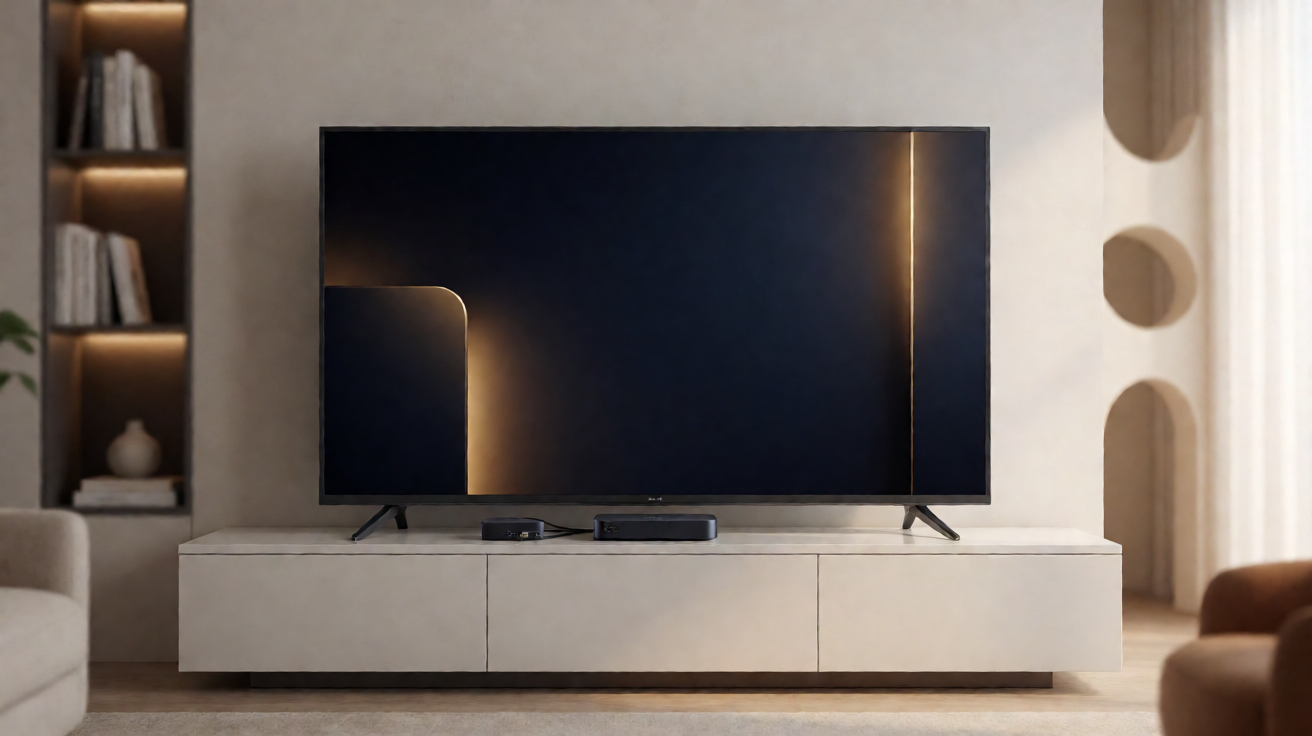
Understanding the Impact of Match Dynamic Range on Image Stability
On the Apple TV 4K, the Match Dynamic Range feature is designed to adapt the video output to the original format of the content being played. When enabled, the device adjusts HDR tone, dynamic range, or refresh rate based on the received stream. This parameter change can cause a brief black screen or slight flickering when the television switches from one format to another, especially when transitioning between titles with heterogeneous video specifications. This is an expected behavior related to the HDMI handshake, but it may be perceived as an anomaly by the user.
To check or modify this setting, go to Settings, Video and Audio, then Adapt to Content. This section allows you to enable Match Dynamic Range and Match Frame Rate, or temporarily disable them to observe if visual interruptions persist. These options are provided by Apple; they do not imply that all third-party televisions or amplifiers can support every format without latency. If in doubt, testing unverified formats from this menu can help identify which one causes problems.
Checking the HDMI Port and Video Chain
A persistent black screen or intermittent return to black can also stem from an inadequate HDMI connection. Apple recommends using an HDMI port compatible with 4K and HDR on the television or amplifier. Some rear ports may be limited in bandwidth or may not support advanced HDR protocols such as Dolby Vision, HDR10, or HDR10+. It is essential to consult the television manual to confirm that the input used supports these formats.
Using an AV amplifier, soundbar, HDMI splitter, or poor-quality cable can interrupt the signal or prevent the correct establishment of the HDMI handshake. The cable must be certified as HDMI High Speed or Premium High Speed to guarantee the bandwidth necessary for 4K HDR signals. If the problem occurs after adding an intermediate accessory, testing the connection directly between the Apple TV 4K and the television helps isolate the cause. A test of the HDMI connection is also available from the device settings to diagnose any immediate incompatibilities.
Properly Configuring the Television and Apple TV 4K
Besides selecting the right port, the television must have the HDMI mode activated for extended formats. Many screens offer multiple HDMI input modes, some of which restrict bandwidth or disable HDR processing by default. In Settings, Video and Audio, the user can set the resolution, refresh rate, and HDR format in line with the declared capabilities of their equipment. If the image remains black, it is advisable to restart the Apple TV 4K as well as the television, and then recheck the settings after each modification.
Note that actual format support depends on the capabilities of the television, its inputs, and the accessories used in the chain. No third-party model is guaranteed to receive all formats supported by the Apple TV 4K. These recommendations come from Apple; they aim to optimize compatibility but do not replace the official technical specifications of each audiovisual equipment. By following this procedure, most cases of black screen, flickering, or mismatched HDR can be resolved without resorting to technical intervention.
Verified Sources
- Turn on Match Dynamic Range or Match Frame Rate on your Apple TV
- About 4K, HDR, HDR10+, and Dolby Vision on your Apple TV 4K