Family Fire TV: Profiles, Parental Controls, and PIN Security
Discover how Amazon Fire TV supports up to six distinct user profiles, each with tailored content recommendations and independent settings. This guide explains how to create restricted kids profiles, set a four-digit PIN to block purchases and access adult content, and manage age-based restrictions for a safe family streaming experience.
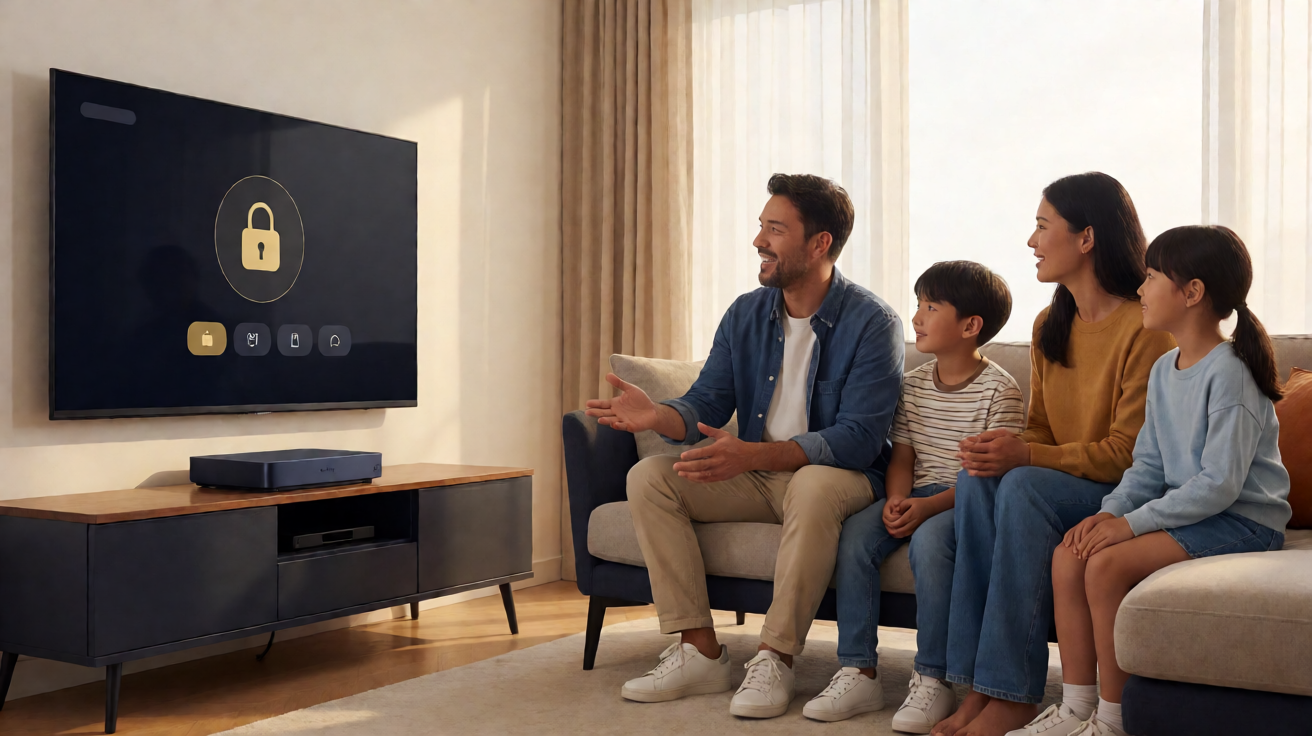
Why Separate Profiles Matter on Fire TV
When multiple family members share a single Fire TV device, the viewing experience often becomes cluttered. Recommendations mix action movies with children’s cartoons, and accidental purchases can occur on the primary account. Amazon addresses this by supporting up to six distinct profiles on Fire TV. Each profile maintains its own watch history, favorites, and tailored recommendations, ensuring that content suggestions remain relevant to the individual viewer.
Creating these profiles is straightforward. From the home screen, navigate to Settings, then select Manage Profiles and Users. Here, you can add a standard adult profile or create a dedicated Kids Profile. The Kids Profile is specifically designed to enforce restrictions, making it easier to manage what different generations can access on the shared device. Naming each profile clearly helps users identify their space instantly from the login screen.
Setting Up Kids Profiles and PIN Protection
The core of family security on Fire TV lies in the Kids Profile and its associated PIN. When creating a restricted profile, you are required to set a four-digit PIN. This PIN acts as the primary security barrier, protecting three critical areas: access to parental control settings, permission to make purchases, and the ability to modify existing restrictions. Without this code, children cannot bypass content limits or authorize transactions.
To configure these restrictions, go to Settings and select Parental Controls. The system will prompt you for the PIN you established. Once authenticated, you can set content restrictions based on age ratings, ranging from TV-Y (all children) to more mature classifications depending on your regional standards. Additionally, you can manage application permissions individually. This allows you to block specific apps, such as digital stores or unrestricted streaming platforms, ensuring that only approved content is accessible.
If the PIN is forgotten, Amazon provides a reset procedure accessible through the official Help Center. This process typically requires authentication via the primary Amazon account linked to the device. To avoid future lockouts, it is advisable to store your PIN in a secure location rather than relying solely on memory.
System Updates and Ongoing Management
Parental controls on Fire TV are not static; they evolve with regular software updates. Amazon frequently releases updates that enhance security features, fix vulnerabilities, and improve profile management. It is recommended to check for updates periodically by navigating to Settings, then System, and selecting Check for Updates. Keeping the device current ensures you have access to the latest safety tools and bug fixes related to profile permissions.
The Amazon Help Center now centralizes all procedures related to parental controls, including profile creation, PIN resets, and app permission management. This consolidation simplifies troubleshooting for common issues without needing external searches. For those seeking deeper technical details, the Amazon Developer website offers additional documentation that complements the standard user guides.
By combining separate profiles, age-based restrictions, and a secure PIN, Fire TV can serve as a safe and equitable entertainment hub for every household member. Proper initial configuration and regular software updates are key to maintaining a secure streaming environment.