How to Hide Google TV Recommendations and Shorts Without Confusing Apps Only Mode and Privacy
On Google TV, many users mistake the Apps Only mode for a privacy tool. In reality, it only masks personalized suggestions on the home screen while keeping sponsored content. This guide explains how to hide Shorts and recommendations without losing search or Assistant functionality.
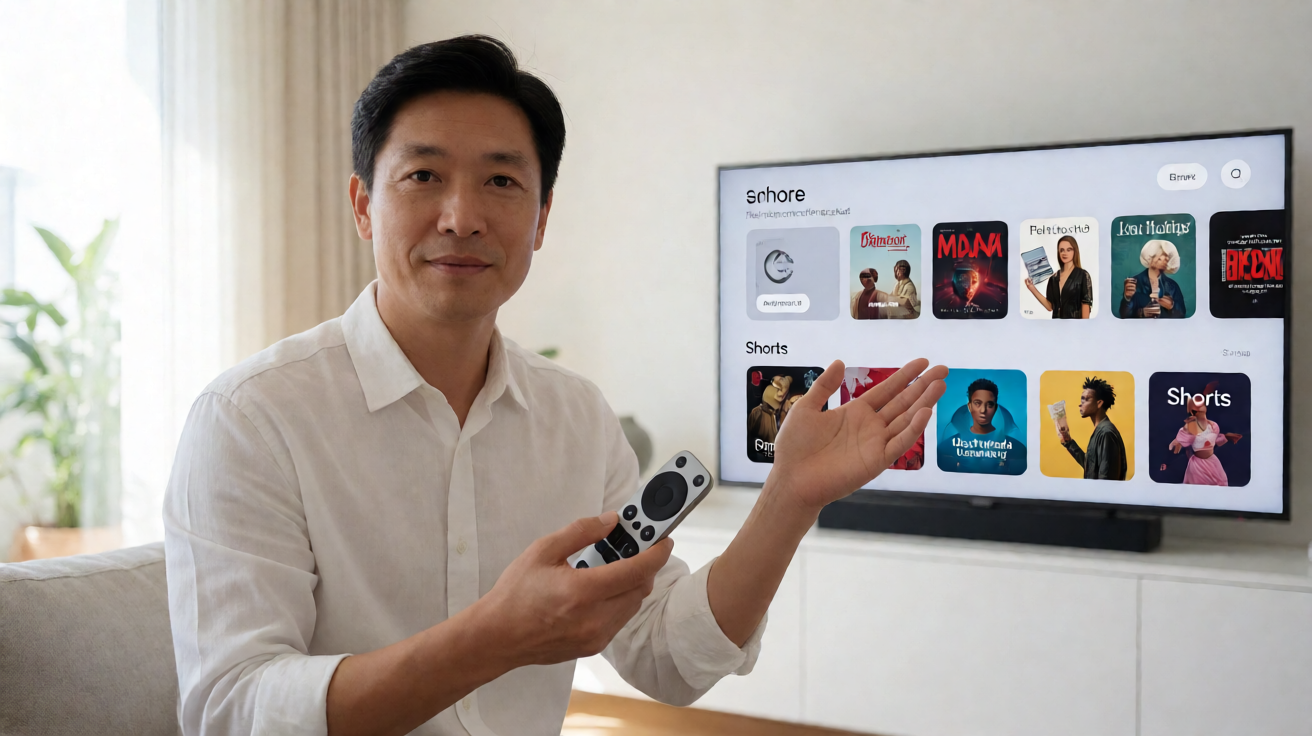
Distinguish Between Customization, Apps Only Mode, and Privacy
On Google TV, the home screen displays suggestions powered by watch history, selected services, search queries, and YouTube activity when those settings are enabled. While this personalization aims to guide viewing, it can feel intrusive or inappropriate on a shared television. To address this, it is essential to understand that three closely related concepts do not mean the same thing: the visibility of recommendations, Apps Only mode, and account privacy settings.
Many users assume that Apps Only mode erases all traces of activity. However, according to official Google support documentation, this mode only hides personalized recommendations from the home screen and retains sponsored content. It does not erase Web and app activity, which may continue to feed other suggestions, nor does it modify any privacy settings. Applications can also maintain their own customization. Furthermore, this mode restricts certain features: search, Google Assistant, and some list actions become unavailable.
Do Not Confuse It With Apps Only Mode
Apps Only mode is designed to simplify the interface, not to protect privacy. It removes targeted recommendations from the home screen, but sponsored content remains visible. If your goal is simply to declutter the screen without sacrificing search or Assistant functionality, this mode is not the ideal solution. It is better suited for guest profiles or contexts where one wants to avoid suggestions while accepting a less complete interface.
It is therefore important not to use this mode as a substitute for privacy settings. Doing so would imply that activity is no longer collected, which is incorrect. Data may continue to be recorded and used for other purposes, including within other apps or Google surfaces.
Adjust General Recommendations and Shorts Separately
For precise customization, it is better to act directly on recommendations. Google support indicates that suggestions combine history, chosen services, searches, and YouTube activity. If only one type of content is problematic, there are targeted settings rather than modifying the entire profile.
For instance, if the YouTube Shorts row is bothersome, the official procedure is to open YouTube, go to Settings, then Recommendations on device, and disable that option. This targeted setting is sufficient when only Shorts are annoying, without affecting other recommendations. Conversely, if you wish to reduce all personalized suggestions, you can explore the options for hiding general recommendations in Google TV settings.
- To hide Shorts: YouTube, Settings, Recommendations on device, disable.
- To reduce general recommendations: use the dedicated settings for hiding suggestions on Google TV.
- Avoid: relying on Apps Only mode to enhance privacy or remove sponsored content.
In summary, Google TV offers distinct levers to adapt the home screen depending on whether you want to limit suggestions, hide Shorts, or preserve certain features. Distinguishing between customization, Apps Only mode, and privacy avoids unpleasant surprises: a simplified interface that is still partially guided, or data that continues to feed other recommendations behind the scenes.