How to Set Up Fire TV Stick 4K for Premium IPTV Streaming
Learn how to configure your Fire TV Stick 4K for smooth IPTV streaming with Nexora. Step-by-step setup, app install, login, and optimization tips.
The Fire TV Stick 4K is one of the most practical devices for enjoying premium IPTV streaming at home or on the go. It is compact, fast, easy to use, and compatible with modern TVs. If you want a reliable way to watch international channels, movies, series, and live sports in high quality, learning how to configure your Fire TV correctly is the first step.
In this tutorial, we explain how to set up a Fire Stick 4K for IPTV, from the first connection to app installation, account login, and playback optimization. The goal is simple: help you get a smooth, stable, and user-friendly streaming experience with Nexora IPTV.
Why Use a Fire TV Stick 4K for IPTV?
The Fire Stick is popular because it combines performance and simplicity. For users looking for a premium IPTV experience, it offers several advantages:
4K compatibility for supported content and screens
Fast Wi-Fi connectivity for stable streaming
Access to IPTV apps through direct installation
Portable format that works on any compatible TV
Easy remote control navigation
With a strong internet connection and a quality provider, Fire TV becomes a powerful solution for everyday streaming. If you are still comparing plans, you can review Nexora offers on /produits.
What You Need Before Starting
Before configuring your Fire TV Stick 4K, make sure you have the following:
A Fire TV Stick 4K connected to your TV
An active Amazon account for device setup
A stable internet connection, ideally high-speed Wi-Fi
Your IPTV access details: Xtream Codes or M3U link
An IPTV player app compatible with Fire TV
If you do not yet have access credentials, you can request a free 24-hour trial to test the service before choosing a subscription.
Step 1: Connect and Initialize Your Fire TV Stick 4K
Plug in the device
Insert the Fire Stick into an available HDMI port on your TV. Then connect the power cable using the included adapter. For best performance, always use the official power supply rather than relying only on a TV USB port.
Select the correct HDMI source
Turn on your TV and switch to the HDMI input where the Fire TV Stick is connected. The setup screen should appear automatically.
Pair the remote and connect to Wi-Fi
Follow the on-screen instructions to pair the remote control. Then select your Wi-Fi network and enter the password. A stable connection is essential for smooth IPTV streaming, especially in HD or 4K.
Sign in to your Amazon account
Complete the default Fire TV setup by signing in with your Amazon account. Once this is done, you can access the home screen and begin app installation.
Step 2: Allow App Installation
Many IPTV players for Fire TV are installed through direct download tools. To prepare your device:
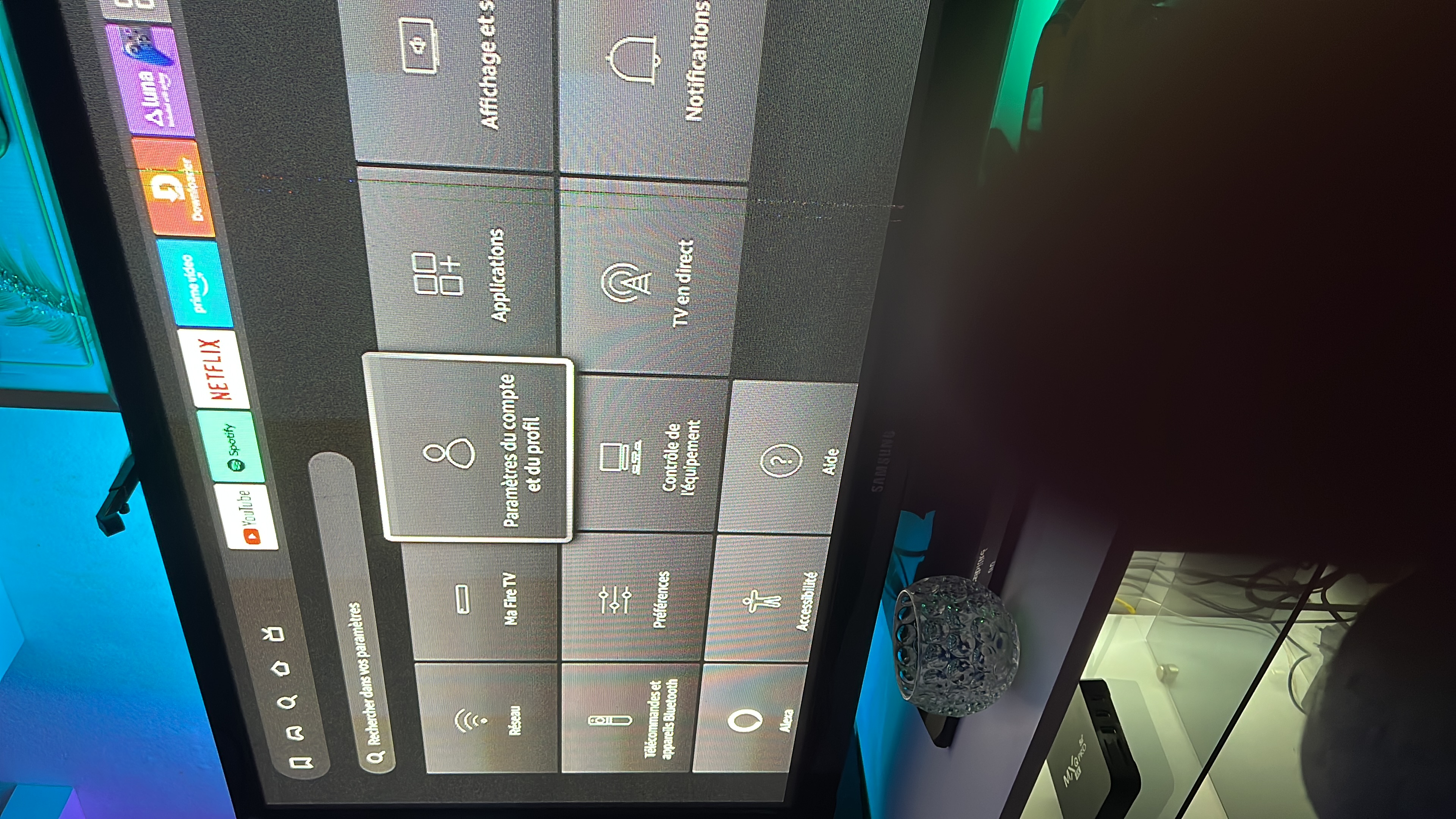
Go to Settings
Open My Fire TV
Select Developer Options
Enable installation from unknown apps if required by your chosen app workflow
This step allows more flexibility when installing a streaming player. Keep your device updated and only use trusted applications.
Step 3: Install an IPTV Player on Fire TV
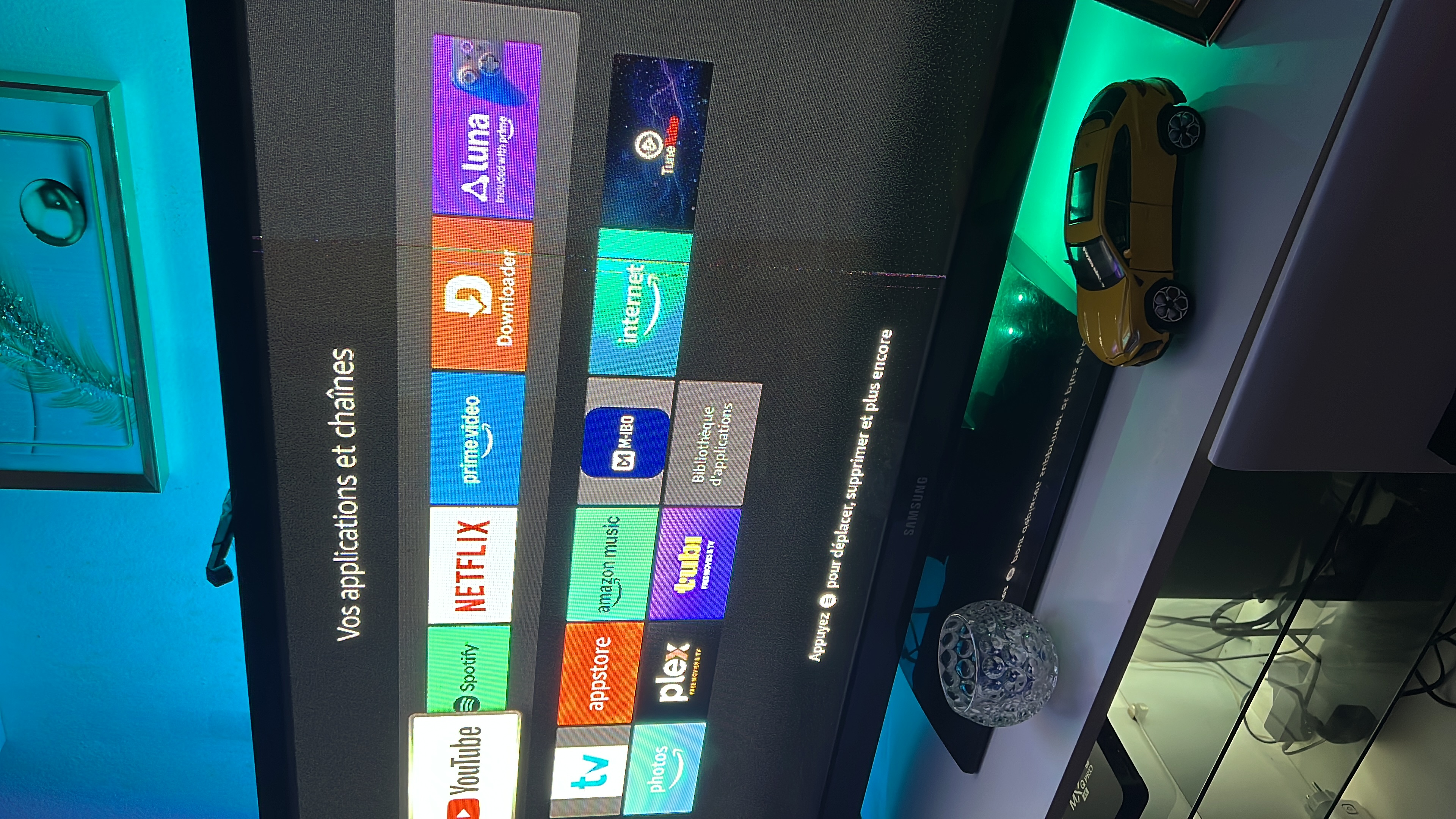
To use IPTV on a Fire Stick 4K, you need a player app that can read your subscription details. Depending on your preferred setup, the app may support Xtream Codes login or an M3U playlist.
The general process is simple:
Open the search function on Fire TV
Find your preferred IPTV player or download utility
Install the app
Launch it from your apps library
Nexora setup guides cover the same logic used across multiple devices. If you want more tutorials for other platforms, visit the /blog section.
Step 4: Enter Your IPTV Login Details
Once the player is installed, you can connect your IPTV account. Most users choose one of these methods:
Option 1: Xtream Codes
This is often the easiest method. Enter:
Server / Host URL
Username
Password
After validation, the app will load the available categories such as live channels, movies, and series.
Option 2: M3U Playlist
Some apps allow you to add an M3U URL directly. Paste the playlist link exactly as provided. Once confirmed, the player will import the content library.
After login, give the app a few moments to synchronize the content. On a good connection, this usually takes only a short time.
Step 5: Organize and Test Your Streaming Experience
When your account is loaded, take a few minutes to improve usability:
Create favorites for your most-watched channels
Browse categories such as sports, movies, series, and international channels
Test several streams to confirm playback quality
Adjust language, subtitles, or display settings if available
This first check helps confirm that your IPTV on Fire TV is working correctly. If you already have an account and need to manage your details, renew, or follow your service information, use the client area.
Best Settings for Smooth IPTV Streaming on Fire TV
A good setup is not only about installing the app. Performance also depends on a few simple optimizations.
Use a stable internet connection
For HD and 4K streaming, Wi-Fi quality matters. Place your router close to the TV if possible, or use a stronger home network setup. Reducing signal interference can significantly improve playback stability.
Restart the device regularly
If your Fire Stick feels slow, a quick restart can clear temporary memory and improve responsiveness.
Keep apps updated
Updated apps usually offer better compatibility, bug fixes, and improved playback management.
Close unused background apps
Although the Fire TV Stick 4K is efficient, limiting unnecessary background activity can help maintain smooth navigation.
Match video quality to your connection
If your network is temporarily weaker, switching from 4K to HD can improve stability without sacrificing too much visual quality.
Common Fire TV IPTV Setup Issues and Fixes
App does not open
Restart the Fire Stick and relaunch the application. If needed, reinstall the player and log in again.
Buffering or freezing
Check your Wi-Fi speed, restart your router, and test another stream. In many cases, connection quality is the main factor.
Login error
Verify that the host, username, and password are entered exactly as provided. A small typo is enough to block access.
Playlist not loading
If you use M3U, make sure the full link is copied correctly with no missing characters.
No sound or image issue
Check your TV audio settings, HDMI connection, and player options. A quick reboot often resolves temporary display problems.
If you need help, Nexora provides human support through WhatsApp, Telegram, email, and live chat.
Why Choose Nexora for Fire TV IPTV?
Configuring a Fire TV Stick 4K is much easier when your provider is reliable. Nexora is designed for users who want premium streaming quality without unnecessary complexity.
Stable servers for consistent performance
International channels, movies, series, and sports
4K-ready experience on compatible devices
24/7 human support
Multi-device compatibility including Smart TV, Fire TV, Android, iOS, MAG, and Enigma2
Automatic delivery after payment by email, WhatsApp, or Telegram
For professionals interested in distribution opportunities, Nexora also offers information for partners on the /reseller page.
Final Checklist Before You Start Watching
Here is a quick recap of the full setup process:
Connect the Fire TV Stick 4K to your TV
Complete the Amazon and Wi-Fi setup
Install a compatible IPTV player
Enter your Xtream Codes or M3U details
Test playback and organize your content
Optimize settings for smoother streaming
Once these steps are complete, your Fire TV is ready for premium IPTV streaming.
Get Started with Nexora IPTV
If you want a reliable service for your Fire Stick, Nexora gives you access to premium streaming, international channels, responsive support, and flexible plans adapted to your needs. Whether you want a short plan, a long-term subscription, or multiple connections, you can find the right option quickly.
Ready to configure your Fire TV Stick 4K with a premium IPTV service? Explore the available plans now on /produits.
FAQ
Is Nexora IPTV compatible with Fire TV Stick 4K?
Yes. Nexora IPTV is compatible with Fire TV Stick 4K as well as Smart TVs, Android devices, iOS, MAG boxes, Enigma2, and computers.
What login details do I need to set up IPTV on Fire TV?
You typically need either Xtream Codes credentials including host, username, and password, or an M3U playlist link, depending on the player app you use.
Can I test the service before subscribing?
Yes. Nexora offers a 24-hour free trial so you can evaluate streaming quality, compatibility, and overall performance on your Fire TV device.
Why is my Fire TV IPTV buffering?
Buffering is usually linked to internet stability, Wi-Fi signal strength, or temporary app issues. Restarting the device and checking your connection often helps.
How many simultaneous connections are available?
The number of simultaneous connections depends on the subscription plan you choose. Nexora offers single-connection and multi-connection options.