IPTV on VLC Android to Chromecast: Network and Casting Settings
Not every IPTV stream plays on external displays. Follow this verified guide to confirm source playback, network compliance, and casting settings on VLC Android before troubleshooting.
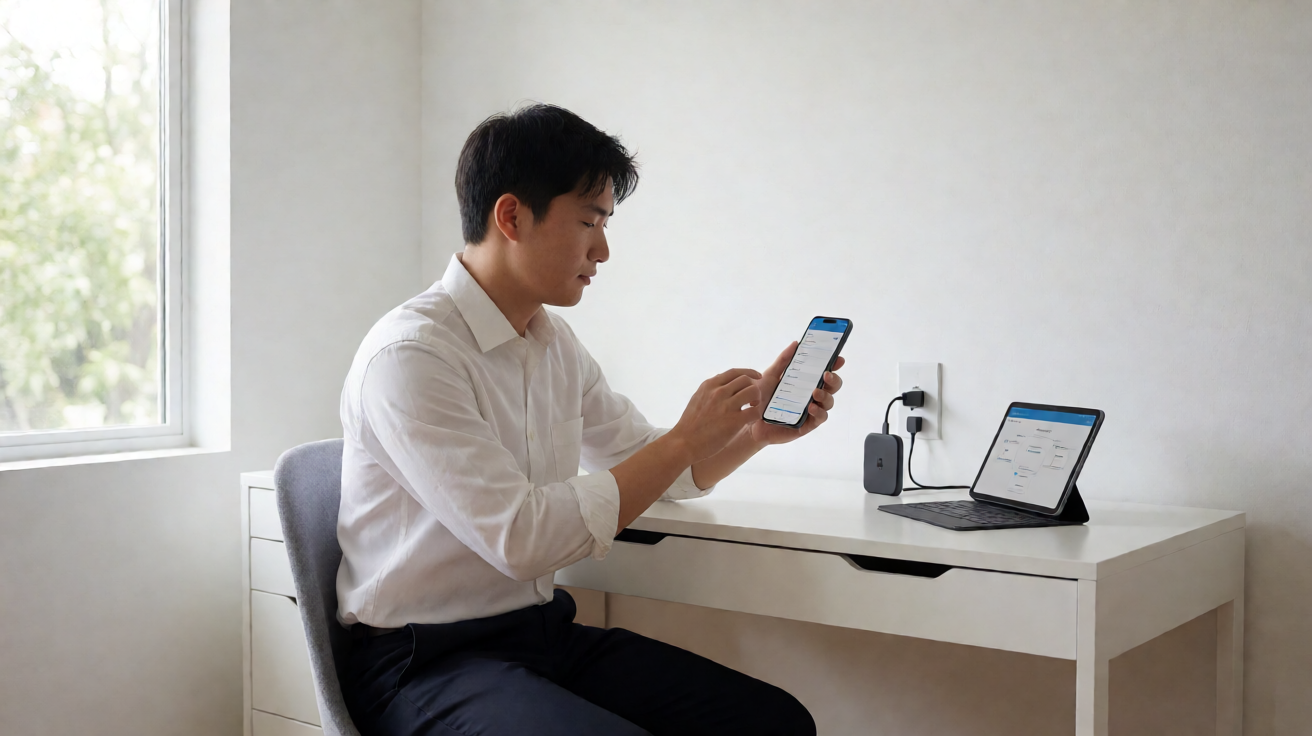
Confirm Authorized Playback on the Android Device First
Before adjusting any casting configurations, ensure the IPTV stream plays correctly directly on the Android device. According to VideoLAN documentation, VLC Android utilizes the LibVLC engine to play network streams, but this general capability does not guarantee compatibility with every IPTV service or codec. If the content fails to play locally on the phone or tablet, the issue likely stems from the stream itself or the decoder, rather than the casting receiver.
It is advisable to note the version of VLC Android and the Google Cast receiver before modifying settings. This helps isolate whether a problem arises from a missing update or a known incompatibility.
Network Compatibility and Cast Receivers
For casting to function, the emitter and receiver must generally belong to the same Wi-Fi network. Google support states that compatible devices include Chromecast, Google TV Streamer 4K, and televisions integrating Google Cast. Isolated networks, VLANs, or client confinement rules can prevent the discovery of the receiver; these should be checked before blaming the IPTV provider.
Users should also confirm that the source application is an updated compatible version and that the stream usage is authorized. The casting feature described in the official VLC Android repository outlines a general technical capability; it does not constitute approval of all content nor a means to bypass protections.
Configuring Casting in VLC Android 3.X
In the extra casting settings of VLC Android 3.X, users typically find the following options:
- Enabling wireless casting to detected receivers.
- Choosing audio rendering, such as outputting through the television rather than the phone speakers.
- Adjusting conversion quality, which is useful when the source stream differs in resolution or bitrate from what the receiver supports.
These options allow the output to adapt to the television's capabilities, but their exact availability depends on the installed version. If an IPTV stream fails to cast after activation, it is important to distinguish between a failure to discover the receiver, a refusal related to the codec, or a protocol incompatibility.
Troubleshooting Common Issues
Based on documented constraints, here are some troubleshooting steps:
- If the receiver does not appear, verify the common Wi-Fi connection, guest networks, and any local firewalls.
- If the image or sound is interrupted, test direct playback on Android first to rule out a stream issue.
- If quality drops, adjust the conversion setting and compare it with the specifications of the Cast-enabled television.
- If certain streams refuse to cast, the blockage may come from protections or unsupported formats within the Cast chain, without invalidating the entire feature.
In summary, casting IPTV from VLC Android to Chromecast or Google Cast relies on three verifications: authorized playback on the source device, Wi-Fi network compliance, and appropriate quality settings for the receiver. Each service and codec remains subject to its own usage conditions.
Verified Sources
- VideoLAN — VLC Android 3.X Casting
- VideoLAN — VLC for Android, Official Repository
- Google — Cast media from Google Cast-enabled apps